
Most teams blow through their free 5,000 session recordings in the first few days. Then they panic about storage limits.
But the truth is that you’ll watch maybe 1% of those recordings. And 90-95% of what you’re looking for? Proper event tracking handles that.
This guide covers how to actually use PostHog session recordings without wasting money or time.
Best for: Product teams, marketers, and founders who want user behavior visibility without a bloated analytics bill.
How to Setup Session Recordings in PostHog
Head to Settings → Session Replay. Toggle “Record user sessions” on. That’s the baseline.
From there you get options:
- Capture console logs (recommended for debugging)
- Capture canvas elements (web only, optional)
- Recording triggers (URL, event, or feature flag)
- Sample rate (default 100%, but 50% stretches your budget)
- Minimum session duration (set to 5 seconds to filter bots)

The recording triggers section is where things get interesting. You can start recordings only when someone hits a specific URL or fires a specific event. This means you’re not burning budget on homepage bounces.
One thing to know: recordings start when the trigger fires. They don’t retroactively capture what happened before. If your trigger is the pricing page, you won’t see the homepage visit that came before it.
How to Use Session Recording in PostHog
Two ways to access recordings. Most people only know the first one.
Method 1: Through Person Profiles
Click on any scorecard or event in your dashboard. You get a list of users. Hold Command (Mac) and click on someone to open their profile in a new tab.
From there you see:
- User properties
- Event history
- All session recordings for that person
Quick tip: the default time filter might hide older recordings. Recordings expire after 90 days on pay-as-you-go plans.
Method 2: Through Session Replay (Better)
Go to the behavior section in the left nav. Click “Session Replay.”
You get built-in collections:
- Watch history (recordings you already viewed)
- All recordings with comments
- Shared recordings
- Recordings expiring soon
The “expiring soon” filter is gold. Catch important sessions before they disappear.
How Much Do Session Recordings Cost in PostHog?
PostHog pricing gets confusing because they show every tier. Here’s the back-of-envelope math:
| Sessions | Monthly Cost |
|---|---|
| 5,000 | Free |
| 10,000 | ~$25 |
| 20,000 | ~$60 |
| 40,000 | ~$125-150 |
| 60,000 | ~$200 |
Each additional recording gets cheaper at volume. But if you’re hitting 60K sessions monthly, you’re looking at $200+ regardless.
The real question: Do you need that many recordings? (probably not)
How to Reduce PostHog Session Recording Costs
Go to Settings → Session Replay. Here’s where the savings happen.

Set recording triggers
Don’t record everything. Start recordings only when someone:
- Hits a specific URL (like your signup flow)
- Fires a specific event
- Matches a feature flag
Example: One team burns their entire $200 budget recording only their checkout flow during Q4 testing. That’s intentional. That’s useful.
Use sampling to reduce recording costs
Drop your sample rate to 50%. You capture one out of every two sessions automatically. Spreads your budget across the whole month instead of burning through it in week one.
Set minimum duration
5 seconds minimum. This filters out bot traffic and people who bounce immediately. You weren’t going to watch those anyway.
Use regex for URL matching
When setting URL triggers, add .* at the end. Otherwise PostHog matches exactly and misses any URL parameters.
Example: visionlabs.com/contact.* catches everything with “contact” in the path.
When Should You Actually Watch Session Recordings?
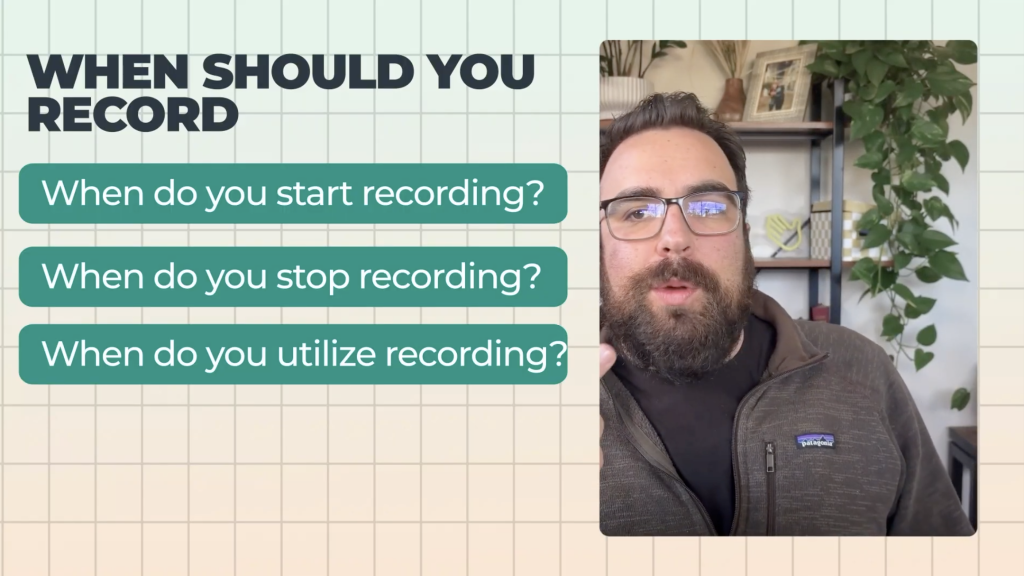
Most session recordings are a waste of time. I only recommend watching recordings when:
- Someone fills out a contact form (see their full journey)
- A user reports a bug (watch what actually happened)
- You’re testing a specific flow (checkout, onboarding, signup)
- Someone rage-clicks or shows frustration signals
Skip recordings when:
- You’re just curious about “how people use the site”
- You want to feel productive
- Your event tracking already answers the question
Create segments and filters. Watch the 1% that matters.
The Microsoft Clarity Backup Strategy
Yes. And you should. Microsoft Clarity gives you unlimited free session recordings forever. Use it as your backup when PostHog limits run out.
The setup:
- Deploy Clarity via Google Tag Manager
- Send the PostHog session ID to Clarity as a user ID
- Now you can find the same session in both tools
Why this works:
- PostHog gives you the analytics and event tracking
- Clarity gives you unlimited recording storage
- Same session ID connects them
Clarity has solid filtering too. Rage clicks, dead clicks, excessive scrolling, device type, traffic source. You can even filter by ChatGPT referrals.
The interface is a bit round and fluffy. But free is free.
The Notebook Trick for Extended Storage
Add them to a PostHog Notebook. When you save a recording to a notebook, PostHog extends the retention period. It treats notebook content as intentionally saved rather than rolling storage.
When you add a session recording to a notebook, PostHog extends the retention. It treats them as “intentionally saved” rather than rolling storage.
Use this for:
- High-intent user journeys
- Bug documentation
- User research archives
- Experiment recordings
What Most Teams Get Wrong when setting up Session Recordings in PostHog
Three mistakes on repeat:
- Recording everything, watching nothing. You don’t need 100% of sessions. You need the sessions that answer specific questions.
- Ignoring event tracking. Session recordings are a crutch when your events are bad. Fix your event naming first. 90-95% of your questions get answered there.
- Panicking about storage limits. Between sampling, triggers, Microsoft Clarity, and notebooks, you have options. The 5,000 free tier is a starting point, not a ceiling.
Quick Session Recording setup Checklist for PorstHog
- Enable session recordings in Settings → Session Replay
- Set minimum duration to 5 seconds
- Add URL or event triggers for high-value flows
- Consider 50% sampling if hitting limits early
- Install Microsoft Clarity as a free backup
- Save important recordings to notebooks before expiration
Next step: Audit your current PostHog setup. Are you recording everything and watching nothing? Fix your event structure first, then use recordings for the edge cases that events can’t answer.


