
While there are many steps in between, this funnel is tried and true across industries from software to info products and even e-commerce.
In this article, we’ll explore how to send these events from PostHog back to Meta, focusing on Meta specifically, though the process applies to all destinations available within PostHog.

Setting Up Meta Conversions in PostHog
To start, navigate to PostHog’s Data Pipelines and then to Destinations. Here, you can add a new destination by typing “Meta” and selecting Meta Conversions. You’ll need two key pieces of information:
- Access Token: You can generate as many as you want, and they don’t expire.
- Pixel ID: Found in your Meta Business Manager under your website pixel settings.
Once you have these, paste them into PostHog’s destination setup. This connection allows you to start sending conversion events from PostHog to Meta.
Understanding Event Structure and Customization
PostHog captures events with several important properties:
- Event Name: Written in PostHog’s standard syntax.
- Event ID: Unique identifier for the event.
- URL: The current URL where the event occurred.
- Timestamp: When the event happened.
- Source: The origin of the event (website, chat, etc.).
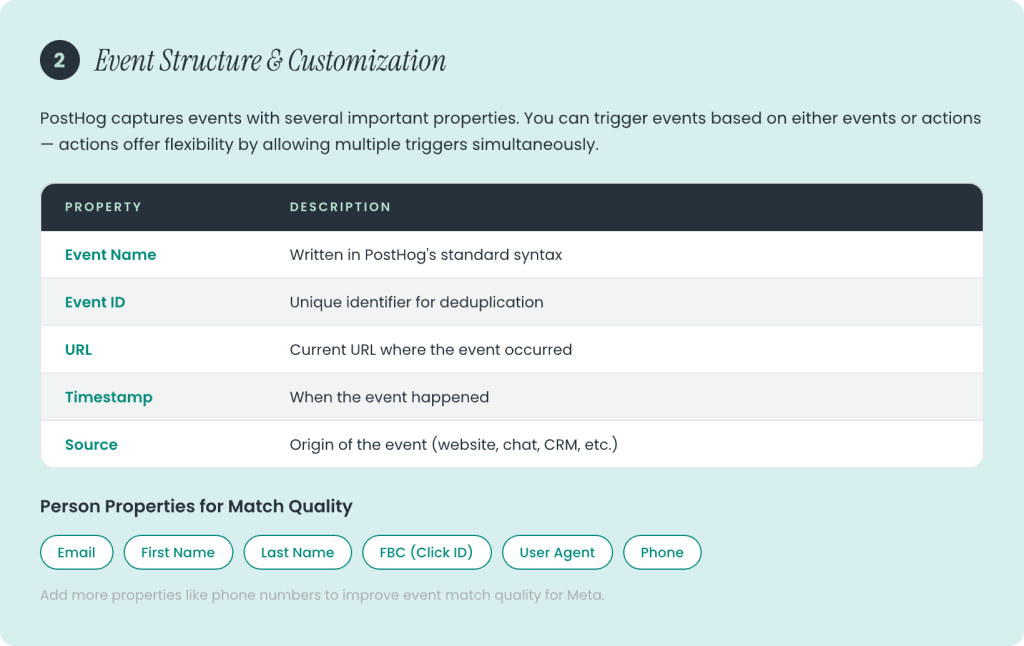
You can choose to trigger events based on either events or actions in PostHog. While most users prefer events, actions offer flexibility by allowing multiple triggers simultaneously.
For example, a common event is lead generated, which fires when someone fills out a contact form. PostHog also captures person properties like email, first name, last name, Facebook Click ID (FBC), and user agent. You can add more properties such as phone numbers to improve event match quality for Meta.
Handling Events Without URLs
Some events, like those coming from a CRM or Calendly, may not have an associated URL. In these cases, you can either create a new data source or write code to overwrite the event’s source URL with a default value (e.g., your website’s homepage). This ensures that Meta receives consistent data about where the event originated.
Integrating CRM and Calendly Events to PostHog
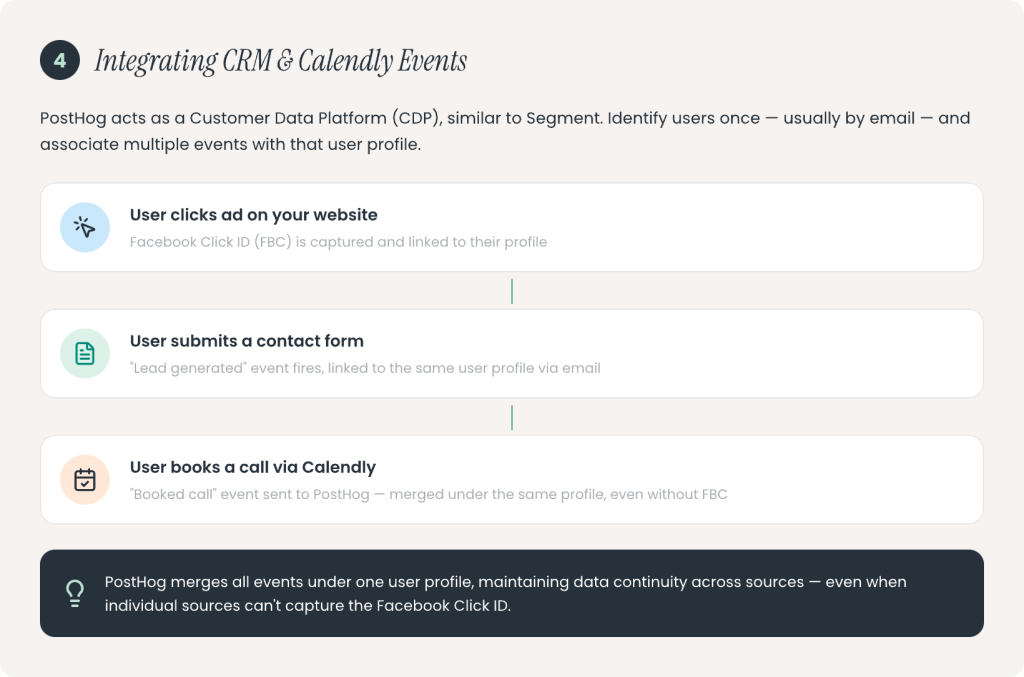
PostHog acts as a Customer Data Platform (CDP), similar to Segment, allowing you to identify users once—usually by their email—and associate multiple events with that user profile. For example:
- A user clicks an ad on your website, and their Facebook Click ID is captured.
- They submit a form, generating a lead event linked to their profile.
- Later, they book a call via Calendly, which sends a booked call event to PostHog.
Even if Calendly doesn’t capture the Facebook Click ID, PostHog merges these events under the same user profile, maintaining data continuity.
Testing and Troubleshooting
You can test your setup by firing events like page views or lead generation and checking if they appear in Meta’s test events tool. PostHog’s logs and metrics help you monitor event flow, though logs may sometimes lag.
If you notice issues, such as invalid Facebook Click IDs, ensure the IDs conform to Meta’s expected format. Using realistic test data helps PostHog correctly associate events with user profiles.
Best Practices and Recommendations
- Use PostHog to send only your key conversion events to Meta, such as lead generation or purchases.
- Keep regular page views and other non-conversion events tracked via browser or server-side tracking.
- Enhance person properties with as much user data as possible to improve event match quality.
- Regularly test your event flows to catch and fix any issues early.
Conclusion
Sending conversion events from PostHog to Meta is straightforward once you understand the setup and data flow. By leveraging PostHog’s powerful event tracking and user identification capabilities, you can create a seamless funnel that captures user actions across your website, CRM, and scheduling tools like Calendly. This integration helps you optimize your Meta ad campaigns with accurate, high-quality conversion data.
If you need assistance setting this up or want to learn more, don’t hesitate to reach out to experts who have successfully implemented these solutions for many customers.